Choosing the right Hdmi To Displayport adapter can be harder than the product photos suggest. HDMI and DisplayPort use different signal standards, so compatibility depends on more than matching connector shapes. Direction matters, too. An HDMI source usually needs an HDMI-to-DisplayPort active adapter, while passive models may fail completely.
This guide examines seven leading adapters for 2026, focusing on practical performance rather than impressive packaging. We consider resolution support, refresh rates, HDCP compatibility, power requirements, build quality, and warranty coverage. A reliable adapter should handle everyday tasks smoothly, from connecting a laptop to a DisplayPort monitor to running a 144Hz gaming display. Some models also include USB power, which can improve stability during high-bandwidth use. Small details matter.
Real-world testing can reveal problems that specifications hide. A cable may deliver 4K video but struggle after several hours of use. Another may work perfectly at 60Hz but flicker at higher refresh rates. No adapter is flawless. Port design, source hardware, monitor firmware, and cable quality can all affect results. We also recognize that “best” depends on your setup and budget. This comparison highlights where each model performs well, where it falls short, and which users should think twice before buying. That honesty matters.
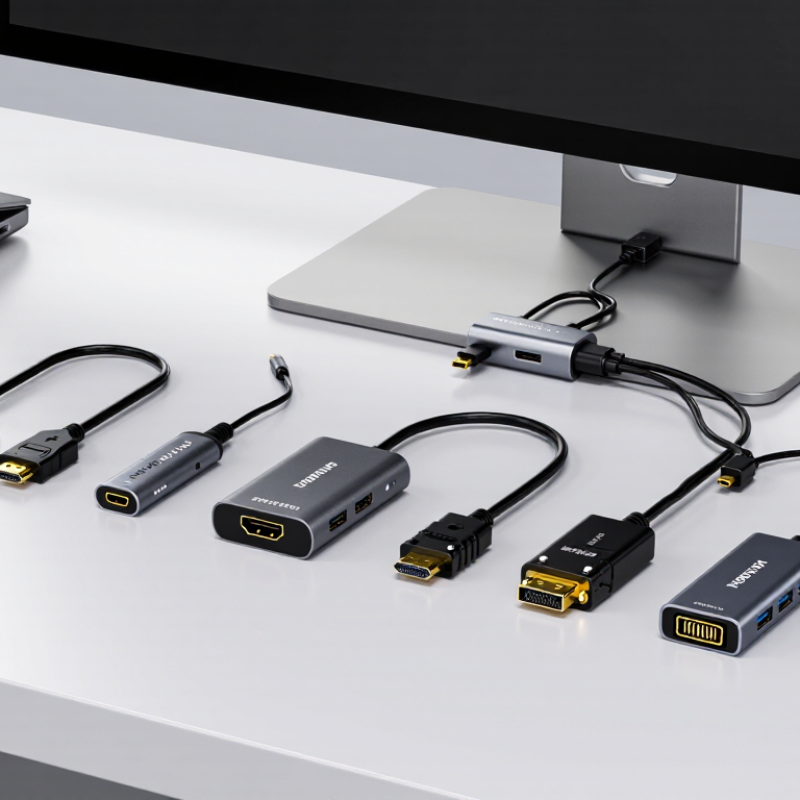
An HDMI-to-DisplayPort adapter converts the signal from an HDMI source, such as a laptop or game console, so it can work with a DisplayPort monitor. The two connection types use different signaling, so a simple cable may not do the job. Many adapters contain active electronics to handle the conversion. Direction matters. Most models work from HDMI output to DisplayPort input, not the other way around. Check the labels on both ends before connecting anything.
Some adapters need USB power, especially when converting higher-resolution or higher-refresh-rate signals. A small USB plug may be required beside the video connections. Check that the adapter supports your display’s resolution and refresh rate; a monitor set to 144 Hz may run at a lower rate if the adapter cannot carry that signal. Audio support can vary, too. Check the details.
In a typical setup, connect the adapter to the source, attach a DisplayPort cable to the monitor, then select the correct input on the screen. One easy mistake is assuming that a picture proves the setup is working fully. It may appear while sound, refresh rate, or protected video playback still has an issue. Specifications matter, though they can be easy to overlook.
HDMI to DisplayPort adapters can look identical, yet direction determines whether they work. Most convert an HDMI source, such as a game console, into a DisplayPort monitor signal. They do not usually work backward. That matters when a laptop’s HDMI output meets a DisplayPort-only screen. Check the source and display labels before buying; a small arrow on the adapter can be easy to miss.
Conversion also affects bandwidth and power. The HDMI Forum’s HDMI 2.1 specification lists bandwidth up to 48 Gbps, while VESA’s DisplayPort 2.1 specification supports up to 80 Gbps with UHBR20. These figures describe interface capacity, not guaranteed adapter performance. The converter’s own supported resolution and refresh rate set the practical limit. Active conversion often needs power from a USB cable, especially for higher-resolution signals. Without it, a monitor may stay black or flicker. I have seen listings bury this requirement; that is not helpful.
Tips: Confirm signal direction, then match the adapter’s stated resolution and refresh rate to both devices. If the adapter has a USB power lead, connect it to a reliable port or charger. Test with a short cable first. Simple, but often overlooked.
Choosing an HDMI-to-DisplayPort adapter starts with checking signal direction. Most models convert an HDMI source, such as a laptop, to a DisplayPort monitor; they do not work in reverse. Many require active conversion, so a simple cable may not be enough. Check the adapter’s stated direction before buying.
Compare the supported resolution and refresh rate with your screen’s actual settings. A listing may promise high resolution but support a lower refresh rate at that setting. Check whether the adapter needs USB power, especially if your laptop has few spare ports. Confirm audio and content-protection support if you rely on monitor speakers or protected video. Compatibility can still vary by computer and display. Annoying, but real.
Tips: Read the fine print for the exact resolution-and-refresh combination you need. If possible, test the adapter with your own display before relying on it for a presentation. Keep the connection simple: seat both plugs firmly, select the correct monitor input, and update display settings if the screen stays blank. A short adapter can reduce cable clutter, though it may fit awkwardly beside neighboring ports.
| Adapter Profile | Best For | Resolution and Refresh-Rate Target | Direction and Conversion | Power and Audio | Key Checks Before Buying |
|---|---|---|---|---|---|
| 1. Basic active adapter | Connecting an HDMI-output computer or media device to a DisplayPort monitor for everyday use. | 1080p at 60 Hz is a common target; confirm the adapter’s listed maximum mode. | Must convert HDMI source to DisplayPort display. Active conversion is generally required for this direction. | Some models draw power from HDMI; others use a USB power lead. Audio support depends on the adapter and display. | Check that the product explicitly states HDMI input and DisplayPort output, not the reverse. |
| 2. 4K at 30 Hz adapter | Office work, web browsing, and video playback where 30 Hz is sufficient. | Up to 3840 × 2160 at 30 Hz, if supported by the source, adapter, and display. | Active HDMI-to-DisplayPort conversion. | Power requirements vary by model. Audio pass-through is model-dependent. | Confirm 4K at 30 Hz is listed; “4K compatible” alone may not specify the refresh rate. |
| 3. 4K at 60 Hz adapter | Desktop use and video where smoother 4K output is needed. | Up to 3840 × 2160 at 60 Hz on models specifically rated for this mode. | Active conversion; the HDMI input, conversion circuitry, and DisplayPort output must all support the required bandwidth. | USB power is common on higher-bandwidth adapters. Audio support must be verified separately. | Check the exact 4K@60 specification, color-depth limits, and whether the required USB power connection is available. |
| 4. 4K adapter with HDR pass-through | HDR-capable displays and sources, when retaining HDR is important. | Some models support 4K at 60 Hz with HDR; the supported combination varies by adapter. | Active conversion with HDR pass-through only when explicitly supported. | May require USB power. Audio and HDR format support vary by model. | Verify HDR support on the adapter, source, display, and any settings or color-depth limits; HDR capability is not implied by 4K support. |
| 5. 1440p high-refresh adapter | Gaming or fast-motion use on a 2560 × 1440 DisplayPort monitor. | Choose a model that explicitly lists the desired 1440p refresh rate, such as 120 Hz or 144 Hz. | Active conversion. High-refresh performance depends on the complete HDMI-to-DisplayPort signal path. | Power and audio support vary by model; check the manufacturer’s specifications. | Do not assume a 4K rating guarantees high refresh at 1440p. Confirm the exact resolution and refresh-rate combination. |
| 6. 1080p high-refresh adapter | High-refresh 1920 × 1080 monitors and compatible gaming systems. | Look for an adapter that specifically lists the required mode, such as 1080p at 120 Hz or 144 Hz. | Active HDMI-to-DisplayPort conversion; actual results depend on source output and display input capabilities. | Some models require USB power. Audio pass-through is not guaranteed. | Check the stated refresh rate and compatibility with the source’s HDMI output; a 60 Hz specification is not a high-refresh rating. |
| 7. USB-powered adapter for demanding setups | Setups where a stable external power connection is preferred or required. | Resolution and refresh rate are determined by the specific model; USB power alone does not establish video performance. | Choose an active adapter with HDMI input and DisplayPort output. | Connect the adapter’s USB power lead as instructed. Audio support depends on the adapter and display. | Check the USB power requirement, cable arrangement, supported video modes, and available USB port or power source. |
Compatibility note: HDMI-to-DisplayPort adapters are directional. These profiles describe HDMI output to DisplayPort input; they do not imply support for DisplayPort-to-HDMI connections. Actual performance depends on the source, adapter, cables, display, and supported settings.
Seven HDMI-to-DisplayPort adapters to consider in 2026 should match the source device, monitor, and workspace. Compare seven practical designs: compact travel plugs, USB-powered active converters, 4K-at-60Hz models, basic 1080p adapters, short cable-attached units, longer-cable options, and models that clearly support audio and content protection. These are different priorities, not seven interchangeable solutions. HDMI-to-DisplayPort conversion is usually directional, so confirm that the adapter accepts HDMI from your computer or console and outputs DisplayPort to your screen.
Check the exact resolution and refresh rate supported by the adapter and by both connected devices. A “4K” label alone does not guarantee 60Hz. For example, a 4K monitor may show a lower refresh rate if the adapter or source has a limitation. Some active adapters also need power from a USB port. That extra cable can clutter a desk, but it may prevent an unstable picture. Honestly, specifications can feel more certain than a real setup; cable length and device settings matter too.
Tips: Before buying, read the adapter’s direction and power requirements, then compare its supported resolution and refresh rate with your monitor’s manual. If possible, test it with the intended HDMI source. Keep the receipt; occasional flicker or blank screens can point to a compatibility issue, not necessarily a defective display.
An HDMI-to-DisplayPort adapter can connect a laptop, console, or media player to a DisplayPort monitor, but the direction matters. Choose an adapter specifically made for HDMI output to DisplayPort input. Many models need USB power for active signal conversion. Check the adapter’s supported resolution and refresh rate against the monitor’s specifications before connecting.
Turn off the devices, connect the HDMI cable to the source, and plug the adapter into the monitor’s DisplayPort input. If the adapter has a USB power lead, connect it to a suitable power source. Turn everything on, select the correct monitor input, then choose a supported display setting on the source. Small steps, but easy to miss.
Tips: No picture? Reseat each plug and confirm the adapter has power. Try a lower resolution or refresh rate, then restart the devices. If video works but audio does not, check the source’s audio output settings; some setups handle sound differently. I’ve found that a loose connector can look like a compatibility problem, so check the physical fit before replacing equipment. It is not always obvious.
Usually not. It typically sends HDMI from a laptop, console, or media player to a DisplayPort monitor. Check the stated direction.
Not always. Check the exact combination, such as 4K at 60Hz, along with the capabilities of both devices. A “4K” label alone is not enough.
Many active adapters need USB power to convert the signal. The extra lead may clutter your desk, but it can help keep the picture stable.
Often, no. HDMI-to-DisplayPort conversion commonly requires active signal conversion. Check the product specifications before relying on a simple cable.
Reseat the plugs, confirm the adapter has power, and select the correct monitor input. Then try a lower resolution or refresh rate. Small details matter.
Check the source device’s audio output settings. Some setups handle sound differently, so audio support should be confirmed before purchase.
It can reduce cable clutter, but may sit awkwardly next to neighboring ports. Port spacing is easy to overlook.
Connect the adapter to your intended source and monitor beforehand. Check the picture, sound, and display settings. A quick test helps, though compatibility can still be frustrating.
This guide explains what an HDMI-to-DisplayPort adapter does and why signal direction matters: a connection from an HDMI source to a DisplayPort monitor may require an active, externally powered adapter, while adapters designed for the reverse direction may not work. It also outlines the key features to compare before choosing, including supported resolution and refresh rate, power requirements, audio support, cable length, and compatibility with your devices. Understanding these details can help you select a suitable Hdmi To Displayport adapter for your setup.
The article considers seven adapter options for 2026, focusing on practical differences rather than assuming one choice fits everyone. It also walks through connecting the adapter and checking common issues, such as a blank screen, unsupported display settings, or missing audio. Confirming the source and display ports, providing any required power, and selecting a supported resolution can help make setup more straightforward.

ELITE POWER