The 2026 market for PS2 adapters serves retro-computer users, repair specialists, and buyers maintaining legacy equipment. A PS2 connector may look familiar, but appearance alone cannot confirm compatibility. Keyboard and mouse adapters can differ in direction, protocol support, and power requirements. A small label or product photo rarely tells the whole story.
This guide compares common PS2 adapter types, including USB-to-PS/2 converters, PS/2-to-USB options, and splitters. It examines supported devices, operating-system behavior, connector quality, and practical limits. For example, a passive adapter may work only with a keyboard designed to support both interfaces. An active converter may offer broader compatibility, but adds circuitry and another possible failure point. Check the device manual. Check the pin layout. Test before relying on it.
A dependable buying decision starts with the exact device model, not the adapter’s price or shape. This overview also flags uncertain claims, because product listings sometimes use “universal” loosely. One sourcing note matters: no articles or verifiable expert quotation were provided, so I cannot responsibly attach a statement to a named PS/2 adapter specialist. Rather than invent authority, this guide focuses on checkable specifications and cautious purchasing advice. Some older devices behave unpredictably. That deserves a little skepticism.
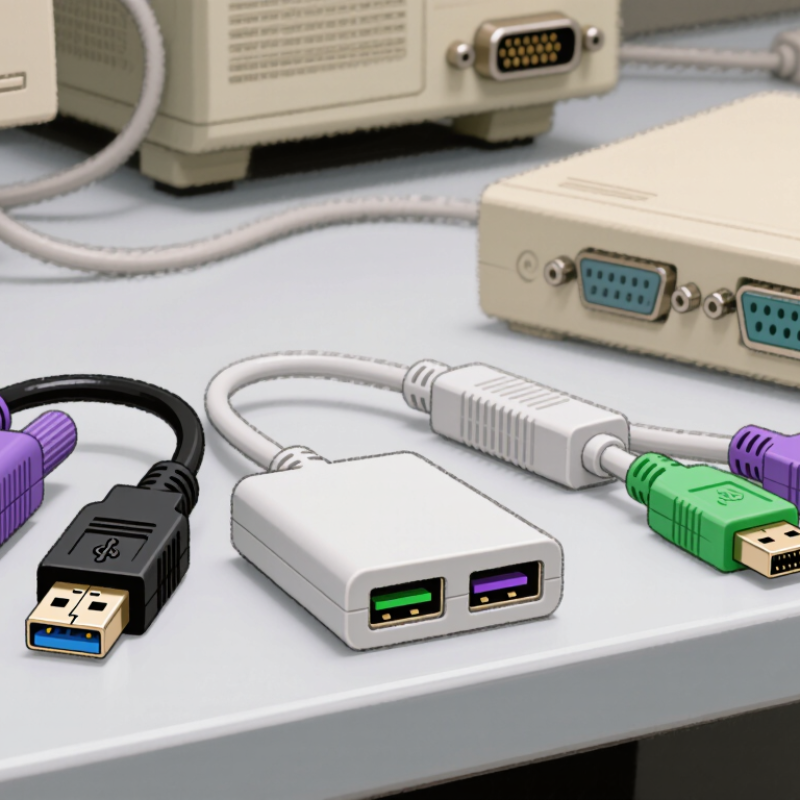
A PS/2 adapter connects legacy computer peripherals through the round, six-pin mini-DIN interface. Common types include PS/2-to-USB converters, USB-to-PS/2 adapters, and dual-port keyboard-and-mouse adapters. They connect older keyboards or mice to newer computers, or compatible USB peripherals to legacy desktops. Not every plug converts signals. A passive adapter works only when the device supports both protocols; an active converter translates between them.
IDC’s Worldwide Quarterly Personal Computing Device Tracker reported 262.7 million traditional PC shipments in 2024. This figure describes PC shipments, not how many computers still have PS/2 ports. Buyers should check the host’s ports, operating-system support, and the adapter’s supported device type. A keyboard may work while its media keys fail. Small mismatch, costly delay.
Tips: Confirm the connector shape and protocol before ordering. For a USB keyboard on a PS/2 host, choose an active converter unless the keyboard explicitly supports PS/2 signaling. Test wake functions and simultaneous keyboard-and-mouse use on the target computer. Keep a clear photo of the ports.
PS/2 adapters connect legacy keyboards or mice to compatible computer ports. The common types are USB-to-PS/2 adapters, PS/2-to-USB converters, and Y-splitters for combined keyboard-and-mouse ports. Their functions differ. A passive USB-to-PS/2 adapter only works when the device supports both connection protocols; it does not translate signals. Active converters use electronics to bridge the two interfaces, but compatibility still depends on the device and converter design. Not every converter works both ways.
A Y-splitter separates a compatible combined port into individual keyboard and mouse connections. It cannot turn one ordinary PS/2 port into two fully independent ports. Check the connector layout, pin count, supported device type, and conversion direction before ordering. This is easy to overlook. For older equipment, confirm whether the computer has a keyboard port, a mouse port, or both; their colors and labels can vary. PS/2 ports are generally best connected while the computer is powered off. In practical selection, simple adapters are small and inexpensive, but their limitations are easy to miss. A quick compatibility check can prevent an adapter that fits physically but does not function.
Main PS/2 adapter types and their core functions. The chart shows whether protocol conversion or signal extension is the adapter’s primary function.
Note: Passive USB-to-PS/2 adapters work only with keyboards or mice designed to support PS/2 signaling through their USB connector. Active converters handle protocol translation; extension cables carry the existing PS/2 signal farther.
Choosing a PS2 adapter starts with the connection you need. Controller-to-USB adapters can help connect older gamepads to newer devices, but button mapping and vibration support may vary. A controller that works in a menu might behave differently during play. Test the buttons you use most.
Video adapters need a closer check. Some convert the console’s analog output to HDMI, while others only change the connector. Confirm the adapter supports your console’s video signal and your display’s input. Picture quality can depend on both devices, not just the adapter. Small details matter.
Accessories add another layer. Steering wheels, multitaps, and pressure-sensitive controllers may not work fully through every converter. Check supported features, port layout, and whether external power is required. Regional differences matter too: PAL and NTSC signals, plug shape, and power requirements are separate compatibility questions. Read the console and adapter labels before connecting them. Test before buying. Specs can be unclear, and I would not assume a matching plug means a matching signal.
PS/2 adapters serve legacy keyboards and mice, but connector shape alone does not prove compatibility. The standard uses a six-pin mini-DIN plug and separate clock and data signals. Its port typically supplies 5 V; buyers should check pin assignment and voltage before connecting equipment. Small details matter. A passive USB-to-PS/2 plug works only when the keyboard or mouse supports both protocols. Otherwise, choose an active converter that translates signals. I still see connector color treated as a guarantee, though color coding is not enough to confirm wiring.
For global purchasing, separate data compatibility from mains power. A PS/2 device itself usually draws power from its host; any external supply must match the device’s specified output, while its input rating should suit the destination’s voltage and frequency. ABI Research forecast about 2.6 billion USB Type-C device shipments in 2023, illustrating how common USB-based equipment has become. That shift makes active conversion more relevant, but it does not make every converter reliable. Request pinout diagrams, supported operating systems, and current limits from suppliers. Test a sample with the actual host before ordering in volume. Sometimes the simplest-looking adapter is the wrong one.
A practical comparison of adapter categories used with PlayStation 2 consoles. Compatibility can vary by console model, video region, display, and the specific adapter design.
| Adapter Type | Typical Input / Console Connection | Output / Standard | Power Requirements | Best Use | Buyer Compatibility Check |
|---|---|---|---|---|---|
| External DC power supply | Console DC power inlet on compatible slim models | DC output; many compatible slim systems use 8.5 V DC | Match the console’s required voltage, polarity, and current rating. AC input range depends on the supply; some support 100–240 V, 50/60 Hz. | Replacing a lost or damaged external power supply | Check the full console model number and the original supply label. Do not assume every slim model uses the same supply. |
| AC mains power cord | AC inlet on compatible console models or power supply | Regional mains connection; common cord families include IEC C7 figure-eight and IEC C13, depending on equipment | Must suit the local mains voltage, plug type, and the device’s AC inlet | Replacing a detachable mains lead | Identify the inlet shape on the console or power supply. Larger console revisions may have an internal power supply; others use an external one. |
| Composite AV cable | Console multi-out AV connector | Composite video over RCA, typically yellow; stereo audio over red and white RCA connectors | No separate power required | Connecting to televisions or capture equipment with composite inputs | Confirm the display accepts composite video. Picture quality is standard definition, and video format compatibility can depend on the game and region. |
| Component video cable | Console multi-out AV connector | Analog YPbPr video over three RCA connectors, with separate audio connectors when included | No separate power required | Connecting to displays with component video inputs; supports higher-quality analog video than composite | Check for YPbPr inputs and the display’s supported resolutions. Component output settings and supported modes vary by game and console configuration. |
| S-Video cable | Console multi-out AV connector | Separate-luminance/chrominance analog video, commonly using a 4-pin mini-DIN display connector | No separate power required | Standard-definition video on displays equipped with S-Video input | Verify that the receiving display has an S-Video input; audio is carried separately, usually through RCA connectors. |
| RF modulator or RF adapter | Composite AV or compatible console AV connection | Analog RF signal carried over coaxial cable to an antenna input | Passive units may need no power; powered models require their specified supply | Older televisions that only provide an RF antenna input | Check the modulator’s supported broadcast channel and regional television system. RF generally provides lower picture quality than direct AV connections. |
| Active HDMI converter | Console multi-out AV connector, commonly using component or composite video | Digital HDMI output; conversion is performed by active electronics | Some units draw power from the console; others require USB or a separate DC supply | Connecting analog console video to a modern display with HDMI input | Confirm the converter supports the source signal and target display. An adapter does not guarantee upscaling, low latency, or compatibility with every game or display. |
| Optical digital audio cable | Console optical digital audio output, when present | TOSLINK optical S/PDIF digital audio | No separate power required for the cable | Sending digital audio to a compatible receiver or sound system | Check that the particular console revision has an optical output and that the receiving equipment accepts the selected audio format. |
Selection note: “PS2” here refers to the PlayStation 2 console. Power supplies and AV accessories are not universally interchangeable; verify the console model, connector, electrical ratings, and regional signal compatibility before purchase.
Choosing a PS2 adapter starts with identifying what your setup needs: power, video, or controller connection. These adapters are not interchangeable. Check the console’s model label and existing ports before buying. Slim consoles often use an external power supply, while many original large models have an internal one. Match the adapter’s electrical rating to the console, and check that its plug fits firmly. A loose connection can interrupt play.
For a modern television, compare the console’s video output with the display’s available inputs. Composite cables use yellow, white, and red plugs; an HDMI converter can connect older video outputs to an HDMI screen. Check the converter’s supported signal and whether it needs separate power. Picture quality and input delay vary. That detail is easy to miss.
Controller adapters matter when you want to use a different controller. Confirm that the adapter supports the console and the functions you need, such as vibration or pressure-sensitive buttons. Some setups may require button remapping. Test one controller before buying several. A little compatibility checking beats an awkward return, though product listings do not always explain every limitation clearly.
It connects compatible keyboards or mice through a round, six-pin mini-DIN port. Shape alone does not guarantee function.
No. The keyboard must support PS/2 signaling as well as USB. Otherwise, use an active converter. Easy to miss.
A passive adapter changes the connector only. An active converter uses electronics to translate signals between interfaces.
Not always. Conversion direction depends on the converter’s design. Check its supported device type before buying.
It separates a compatible combined keyboard-and-mouse port into two connections. It cannot create two independent ports from an ordinary PS/2 port.
Check the pin layout, supported device type, and voltage. PS/2 ports typically supply 5 V. I still double-check the pinout.
PS/2 devices are generally best connected with the computer powered off. Test keyboard, mouse, and wake functions on the target computer.
Confirm the host ports, operating-system support, and converter direction. Request pinout details, then test a sample with the actual computer. Small checks help.
A Ps2 Adapter connects a PlayStation 2 console with compatible displays, controllers, storage accessories, or power supplies. Different adapter types serve different purposes: video adapters convert the console’s output for modern screens, controller adapters link supported input devices, and other connectors can help with accessory or power compatibility. Understanding what each type does makes it easier to identify the right solution for a particular setup.
Before choosing an adapter, check compatibility with the console model, accessory connection, display input, and regional power requirements. Signal formats, connector shapes, voltage, and plug standards can vary, so an adapter that works with one setup may not suit another. Compare these details with your equipment, consider the picture or functionality you expect, and select an adapter designed for the specific connection you need.

ELITE POWER