USB C To HDMI sounds simple, but the name hides an important detail. A USB-C plug does not automatically send video. The device must support DisplayPort Alt Mode, Thunderbolt, or another compatible video standard.
Jeff Ravencraft, USB-IF President and Chief Operating Officer, has described USB Type-C as “a single, slim connector solution for data, power, and video.” That idea explains its popularity. One small port can charge a laptop, connect storage, and drive an external display. Still, the port’s shape alone proves very little.
A USB C To HDMI adapter usually receives DisplayPort video from the USB-C device. It then converts that signal into HDMI output for a monitor or television. The adapter may support 1080p, 4K, HDR, or higher refresh rates. Those features depend on the source device, adapter chipset, cable, and display.
Check the specifications carefully.
Look for “DisplayPort Alt Mode” or Thunderbolt support. A phone may use USB-C for charging and file transfers, yet provide no wired video. I have also seen adapters fail because users selected an HDMI cable with unsuitable bandwidth. That mistake feels minor, but the screen may flicker, remain black, or drop to a lower resolution.
This guide explains how USB C To HDMI works, what happens inside the connection, and which limits matter. It also questions a common assumption: newer connectors are not always more capable. Compatibility still decides the result.
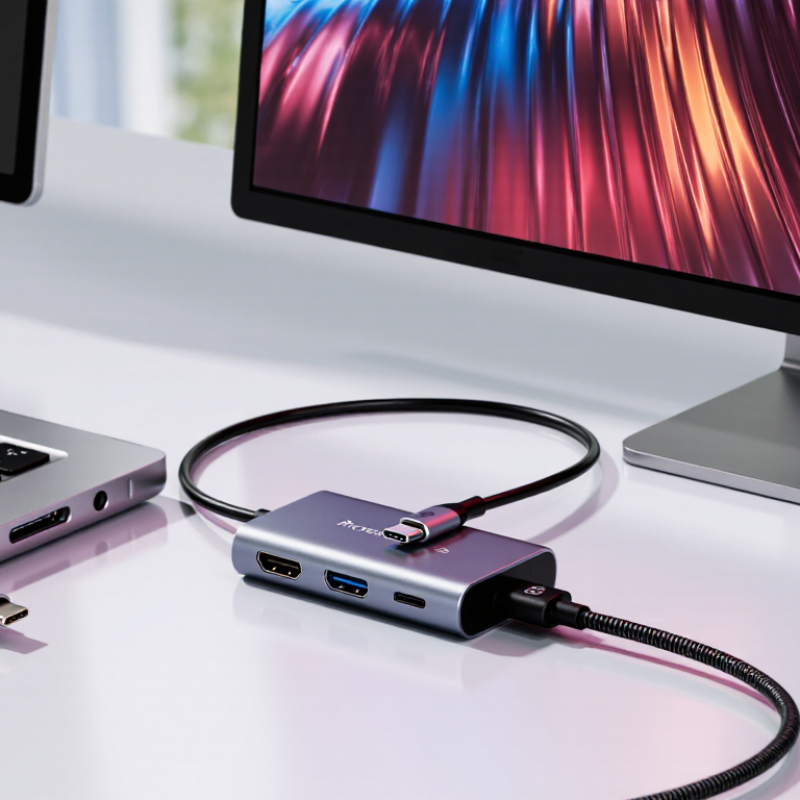
USB-C to HDMI describes a connection that sends video from a USB-C port to an HDMI display. The USB-C plug is only the physical shape. It does not guarantee video output. The computer must support DisplayPort Alt Mode, a feature defined through industry standards. VESA’s DisplayPort Alt Mode specification explains how video signals travel through selected USB-C lanes. USB-IF’s USB4 Version 1.0 specification lists bandwidth up to 40 Gbps, but USB4 alone does not promise HDMI output.
A USB-C to HDMI adapter usually receives DisplayPort signals, then converts them into HDMI signals for a monitor or television. Some adapters work passively, while others contain an active conversion chip. The difference matters for resolution, refresh rate, audio, and copy-protection support. HDMI technical specifications allow much higher bandwidth than older display standards, yet the weakest component still controls the result. The computer, adapter, cable, and display must agree.
Check the port symbol or technical manual before buying. A USB-C port with charging and data support may still produce no picture. I have seen this cause more confusion than cable failure. USB 3.2 data rates, including 10 Gbps, do not automatically mean video capability, according to USB-IF technical documentation. Resolution claims also deserve caution. A label saying “4K” may mean 30 Hz, not smooth 60 Hz output. Small details matter here.
| Data Dimension | What It Means | Typical Information | Important Compatibility Consideration |
|---|---|---|---|
| Primary Function | Connects a device with a USB-C port to a display with an HDMI input. | Transfers digital video and, when supported, digital audio to a monitor, television, projector, or capture device. | The USB-C port must support video output; a USB-C charging or data-only port may not work. |
| Signal Path | Explains how the video signal travels between the two connectors. | Most adapters use DisplayPort Alternate Mode over USB-C and convert that signal into HDMI output. | USB-C is the connector shape, not a guarantee of a particular video standard or performance level. |
| Source Direction | Identifies which device normally sends and receives the signal. | USB-C source device → USB-C to HDMI adapter or cable → HDMI display. | A standard USB-C-to-HDMI adapter is generally not bidirectional and usually cannot send an HDMI source to a USB-C display. |
| Common Resolution | Describes the number of pixels shown on the display. | 1920 × 1080 at 60 Hz is widely supported when the source, adapter, display, and cable are compatible. | Actual support depends on the USB-C video mode, conversion hardware, HDMI version, display, and cable quality. |
| Higher Resolution Capability | Indicates whether the connection can handle more demanding formats. | 3840 × 2160 at 30 Hz is common with many HDMI 1.4-class configurations; 3840 × 2160 at 60 Hz requires a suitable high-bandwidth signal path. | For 4K at 60 Hz, all components must support the required bandwidth, and some systems may require DisplayPort 1.4 features or Display Stream Compression. |
| Refresh Rate | Shows how often the image is refreshed each second. | 60 Hz is common for office, streaming, and general multimedia use. Higher rates may be available at lower resolutions. | The maximum refresh rate is limited by the source device, adapter chipset, HDMI output capability, display, resolution, and cable. |
| Audio Support | Determines whether sound can travel through the same connection. | HDMI can carry digital audio together with video, including multi-channel audio when supported by the source and display. | Operating-system settings, display audio support, adapter design, and content requirements can affect audio output. |
| USB-C Alternate Mode | Defines how the USB-C port uses some of its high-speed lanes for video. | DisplayPort Alternate Mode allows compatible USB-C ports to transmit DisplayPort-based video. | A USB-C port may look identical while lacking Alternate Mode. Look for a display symbol, technical specifications, or device documentation. |
| Power Delivery | Describes whether the connection can charge the source device. | A basic USB-C-to-HDMI adapter may provide video only. Some multi-port hubs include a separate USB-C power input. | Video transmission and charging are separate functions. Charging depends on the adapter design, power supply, and device support. |
| USB Data Transfer | Indicates whether USB peripherals can use the same accessory. | A simple USB-C-to-HDMI adapter normally does not provide USB-A ports, storage access, or networking. | Additional USB functionality requires a hub or dock with dedicated data circuitry and available bandwidth. |
| HDCP Compatibility | Protects digital content transmitted to an external display. | Many modern HDMI connections support HDCP for protected video content. | If the source, adapter, display, and content do not use compatible HDCP versions, protected video may fail to play correctly. |
| Plug-and-Play Behavior | Describes how the connection is detected by the operating system. | Compatible systems usually detect the external display automatically after the adapter is connected. | Display settings may still need adjustment for mirroring, extending the desktop, resolution, audio output, or refresh rate. |
| Cable and Adapter Length | Affects signal reliability and installation flexibility. | Shorter passive connections generally have fewer signal-integrity challenges than very long connections. | Long runs may require an active adapter, signal repeater, or a certified high-bandwidth HDMI cable. |
| Common Use Cases | Shows where this connection is useful. | External monitors, classroom projectors, conference-room displays, home televisions, and secondary screens. | For multiple displays, high refresh rates, or professional workflows, the device may require a compatible dock, hub, or dedicated graphics output. |
| Main Limitation | Summarizes the most frequent source of problems. | The same USB-C connector can support different capabilities across devices. | Always verify video output support, maximum resolution, refresh rate, audio support, and charging requirements before choosing an adapter. |
Note: Performance is determined by the lowest-capability component in the complete connection: the source device, USB-C port, adapter or cable, HDMI input, display, and software configuration.
It sends video from a compatible USB-C device to an HDMI monitor, television, or projector.
No. Some USB-C ports provide only charging and data. Check the port symbol or technical manual.
The computer usually needs DisplayPort Alt Mode. A USB-C shape alone proves very little.
No. USB4 can offer high data bandwidth, but it does not automatically promise HDMI output.
The computer, adapter, cable, or display may lack matching support. Driver conflicts can also cause trouble.
Many compatible adapters carry digital audio through HDMI. This helps during presentations or video playback.
Usually not. Charging requires an adapter with power delivery support. I sometimes assume this incorrectly.
No. Some adapters support 4K at only 30 Hz. Fast movement may look less smooth.
Usually not. These connections are often directional, so signal direction matters.
Confirm video support, resolution, refresh rate, audio, cable quality, and charging needs. Small specifications matter.
Usb C To Hdmi is a connection method that allows a device with a USB-C port to send digital video and audio to a display with an HDMI input. USB-C can carry different types of data, including display signals, when the device supports video output through its port. In this process, the source device converts and sends the image and sound through the USB-C connection, while the adapter or cable delivers the signal in an HDMI-compatible format for the display.
The connection can be made with a direct cable or an adapter, depending on the ports available on each device. Compatibility is important because not every USB-C port supports video transmission, and the display, cable, and adapter must support the desired resolution, refresh rate, and audio features. This setup is commonly used for presentations, larger-screen viewing, classroom work, and extending or mirroring a computer screen. However, users may encounter limitations such as unsupported video output, reduced performance, missing audio, or the need for additional power in certain configurations.

 ELITE POWER